Windows is becoming more than an operating system for opening apps, browsing the web, and managing files. Microsoft is gradually bringing artificial intelligence into everyday PC tasks, from finding documents with natural-language searches to summarizing text and helping users change settings.
In 2026, the Windows 11 experience is evolving through new AI capabilities, improvements to Windows Search, and Microsoft’s broader approach to hybrid AI. However, not every feature is available on every PC. Some experiences require compatible hardware, a Copilot+ PC, specific language settings, or a gradual feature rollout.
If you want to understand which Windows 11 AI tools are worth knowing about, how they work, and what to check before updating your computer, this guide covers the essentials.
What’s New in Windows 11 in 2026?
Microsoft announced the Windows 11 2026 Update, version 26H2, on September 29, 2026. The release uses an enablement-package approach for eligible devices already running Windows 11 versions 24H2 or 25H2, which can make the upgrade simpler than a traditional major upgrade.
Microsoft also shared further Windows experience improvements in October, covering responsiveness, search, personalization, and everyday tasks.
One of the bigger themes is the move from simply finding something on your computer to taking action directly from the interface. Microsoft is also developing a hybrid AI approach, where tasks can use on-device AI models or cloud-based intelligence depending on the task and available capabilities.
It is important to distinguish between features that are generally available, features rolling out gradually, and features still being tested with Windows Insiders. An announcement does not necessarily mean every user can access the feature today.
1. AI-Powered Windows Search
Searching for a file can be frustrating when you cannot remember its exact name. Microsoft is working to make Windows Search more useful by improving how users find information and carry out common actions.
On compatible Copilot+ PCs, enhanced search can use natural-language descriptions to help locate files, photos, and settings. Instead of remembering a precise filename or menu label, you may be able to describe what you want in everyday language.
Microsoft has also announced a newer Search experience with inline actions. The goal is to let users complete certain tasks directly from search results rather than navigating through several menus. For example, searching for a setting such as dark mode could offer a direct action.
Why it matters: Better search can save time for students, office workers, creators, and anyone who manages a large number of files.
Availability: AI-enhanced search capabilities depend on device compatibility, language, and rollout status. Some newer Search interface features have initially been offered to Windows Insiders.
2. Click to Do: Take Action on Text and Images
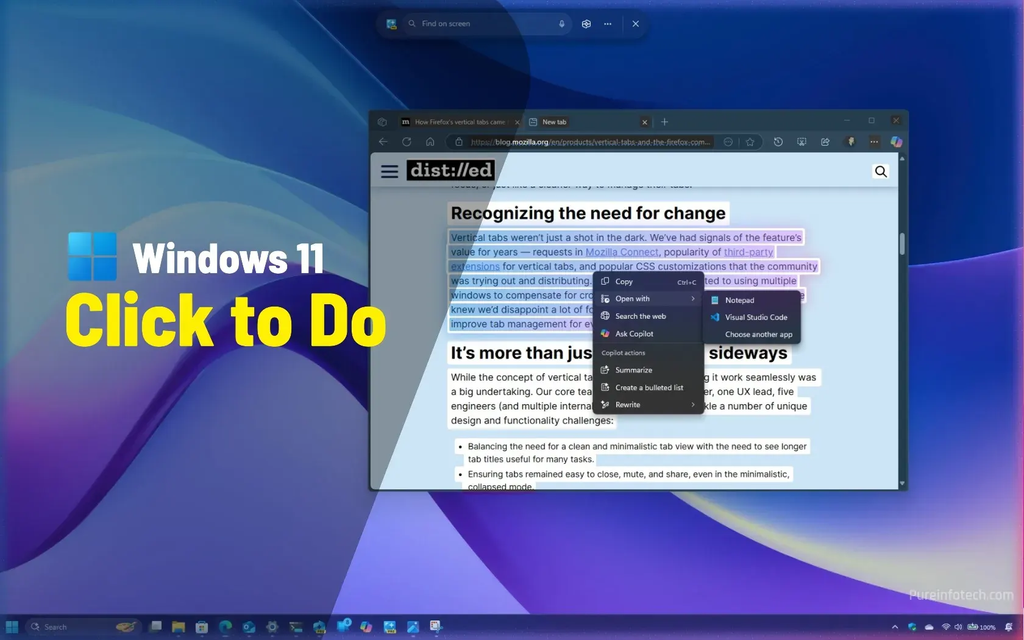
Click to Do is designed to help users act on content they see on their screen. Rather than manually copying information, opening another app, and repeating several steps, users can select detected text or images and choose from available actions.
Depending on the feature, device, region, and app support, actions may include:
- Summarizing selected text.
- Rewriting text in a different style.
- Turning information into a bulleted list.
- Copying or saving images.
- Removing an image background or erasing unwanted objects through supported apps.
- Sending selected content to Copilot for further assistance.
Imagine reading a long passage for work or study. Instead of rewriting your notes from scratch, you may be able to select the relevant content and generate a short summary or a list of key points.
Click to Do can also help with visual tasks, such as taking an image into a supported editing app.
A useful limitation to know: The available actions are not identical on every device or in every region. Some intelligent text actions have language, account, and hardware requirements. Review the official documentation before assuming a particular option will appear on your PC.
3. Recall: Find Something You Saw Earlier
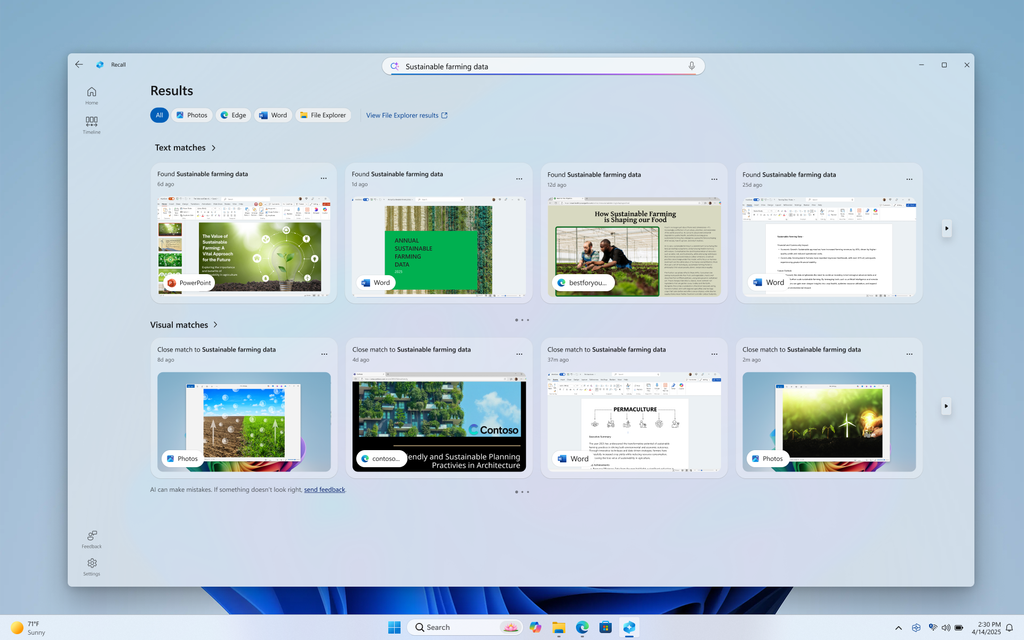
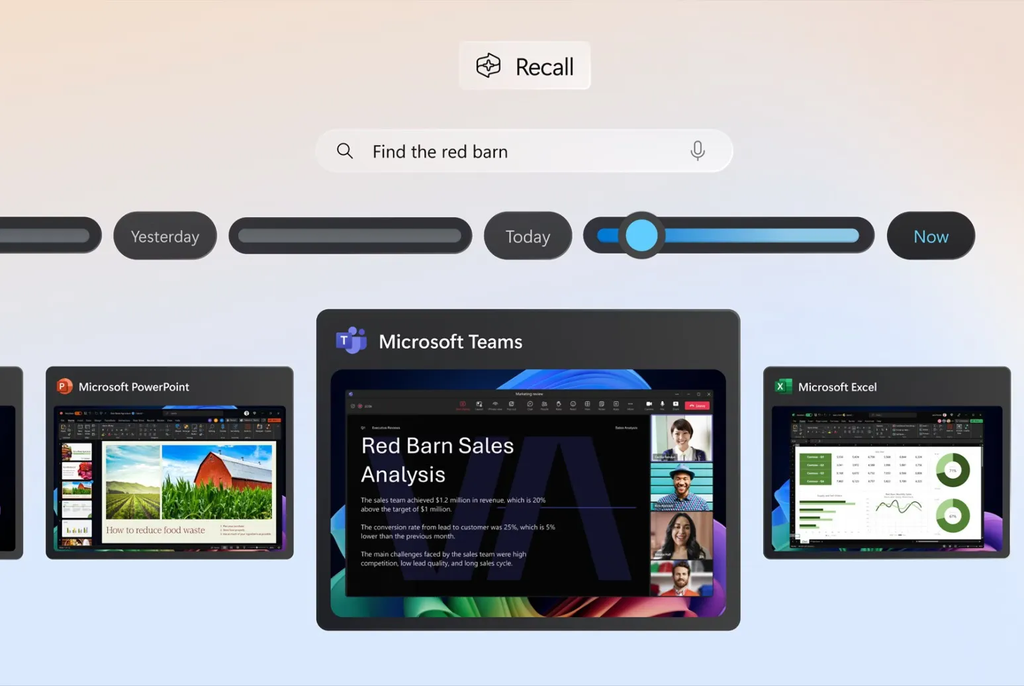
Have you ever remembered seeing a document, website, or message but struggled to find it again? Recall is designed to help users search their past PC activity using AI-powered snapshots and a searchable timeline.
Instead of relying entirely on browser history or remembering a filename, users can describe what they remember and try to find the relevant activity.
Recall is an opt-in experience. Users must enable snapshot saving, and supported systems require appropriate security protections and Windows Hello authentication. Microsoft says snapshots are stored locally and encrypted, and users can control which apps and websites are included, pause collection, or delete snapshots.
Because Recall involves capturing aspects of on-screen activity, privacy deserves careful attention. Users should understand what gets saved, configure exclusions where appropriate, and avoid enabling the feature without reviewing its controls.
Recall also has specific hardware requirements, including a compatible Copilot+ PC. It is not a universal Windows 11 feature for every computer.
4. AI Assistance in Windows Settings
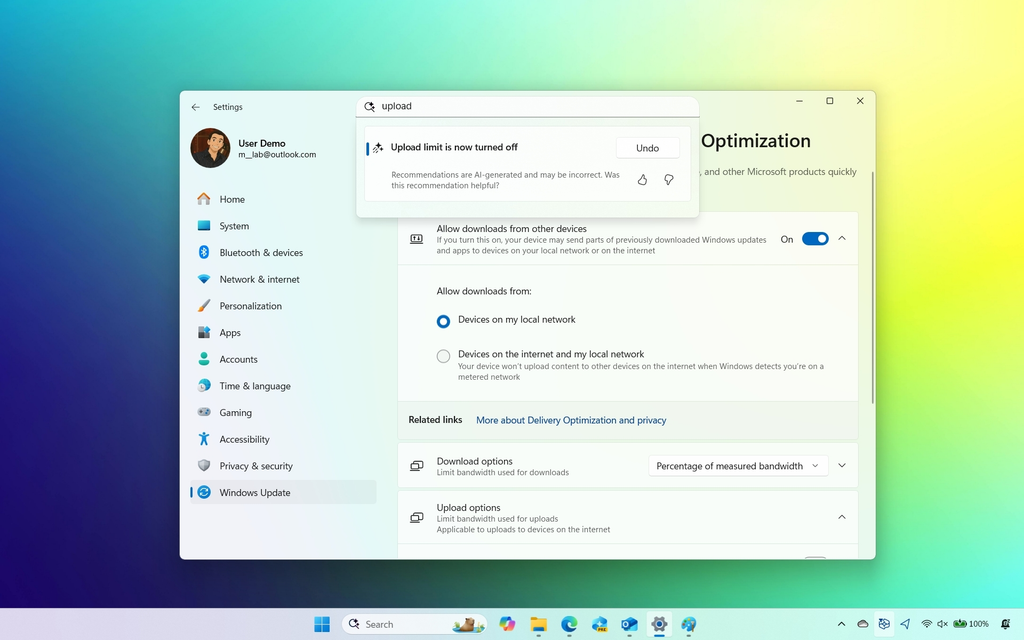
Finding a particular Windows setting can take longer than making the change itself. Microsoft’s Settings agent is intended to make this process more conversational.
Instead of navigating through multiple menus, a user may be able to describe the setting they want to locate or change in natural language. This is part of Microsoft’s broader effort to make Windows easier to use through AI-assisted actions.
For example, someone who is unfamiliar with Windows settings may find it easier to explain what they want than to remember the exact menu path.
The experience has language and device limitations, and its availability may vary. Check your current Windows version and supported languages before expecting the agent to appear.
5. Copilot and Microsoft’s Hybrid AI Approach
Microsoft’s broader Windows strategy is moving toward what it calls hybrid intelligence. The idea is to combine on-device AI with cloud-based AI, depending on what a task needs.
In its October 2026 announcement, Microsoft described three potential capabilities for Copilot on Copilot+ PCs:
- Local context: With permission, Copilot can use relevant content on the PC to help with a task.
- Local actions: AI can help carry out tasks across Windows, such as organizing files or troubleshooting.
- Local models: Supported tasks can use AI models running directly on the computer, with cloud intelligence used where appropriate.
The intended benefit is a more connected workflow. Instead of switching between multiple apps and manually transferring information, users could increasingly ask for help with tasks in the context of their work.
These capabilities should not be treated as universally available or fully mature across all Windows PCs. Microsoft is developing and rolling out experiences over time, and the exact features depend on hardware, software, permissions, and availability.
6. Do You Need a Copilot+ PC to Use Windows AI Tools?
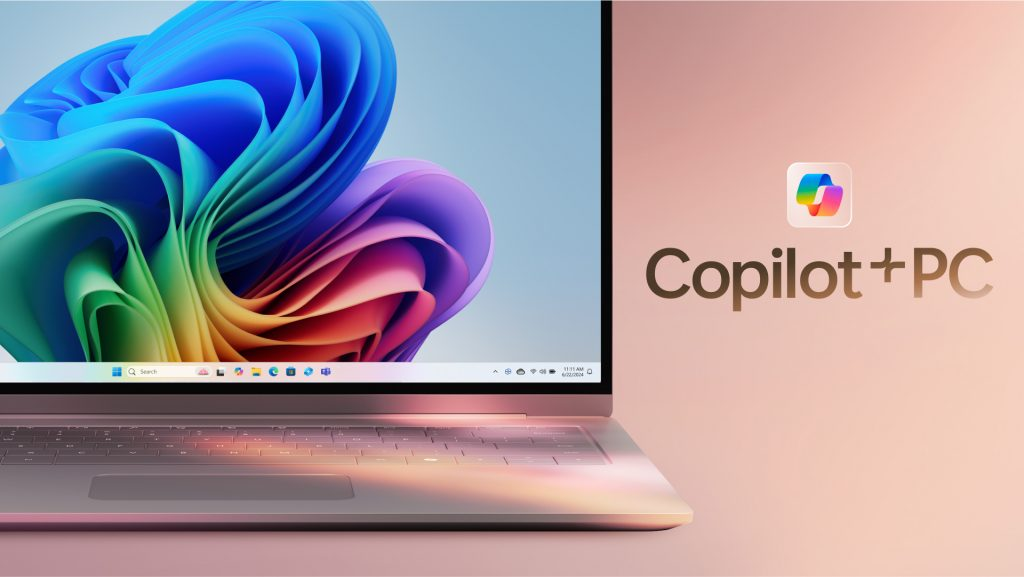
No. You do not need a Copilot+ PC to use every AI feature associated with Windows.
Some features are available through Windows or individual apps on a wider range of devices. Other experiences, including Recall and certain advanced on-device AI capabilities, require compatible Copilot+ hardware.
| Feature or experience | What to check |
|---|---|
| Windows 11 update | Supported Windows version and update availability |
| Click to Do | Compatible device, language, region, and supported actions |
| Recall | Copilot+ PC requirements, security settings, and Windows Hello |
| Enhanced Windows Search | Compatible Copilot+ PC for certain AI search features |
| Settings agent | Device and language availability |
| Copilot experiences | App availability, account requirements, permissions, and rollout |
Before buying a new laptop just for AI, consider what you actually need. If your goal is basic writing help, summaries, or chatbot assistance, an existing PC may already be sufficient through supported apps and web services. If you specifically want advanced on-device Windows AI features, check the hardware requirements for each feature before making a purchase.
7. How to Check for the Latest Windows 11 Update
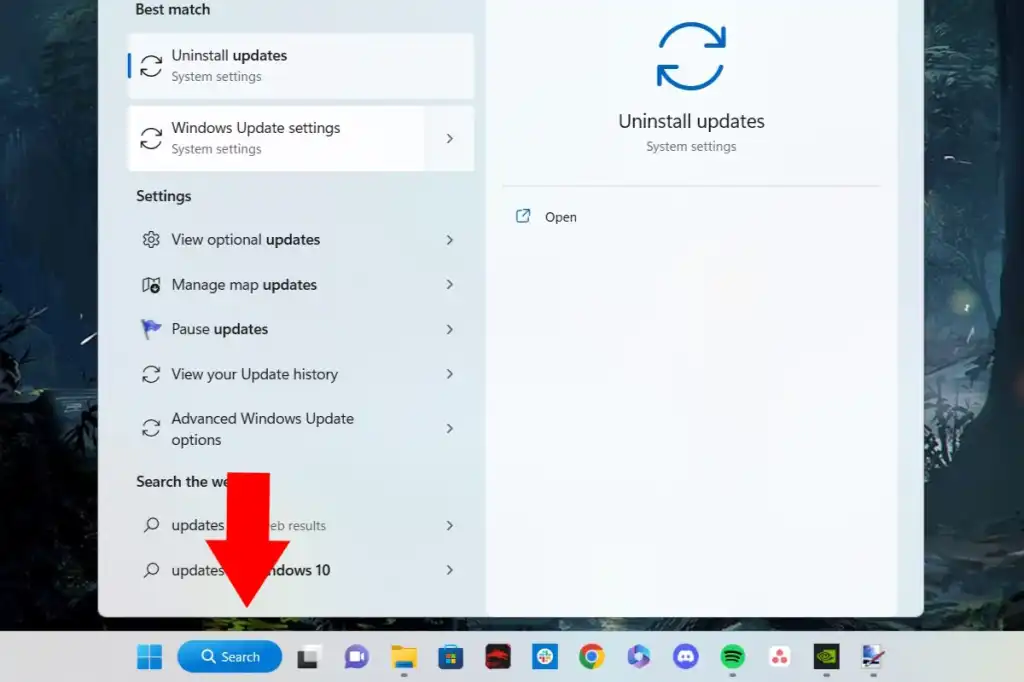
If you want to see whether the latest Windows update is available for your device, follow these steps:
- Open Start and select Settings.
- Go to Windows Update.
- Select Check for updates.
- Review the available updates and follow the on-screen instructions.
- Restart your PC if prompted.
You can also enable Get the latest updates as soon as they’re available if you want to receive eligible non-security updates earlier. Availability can still depend on Microsoft’s rollout and compatibility safeguards.
Before installing a major update, save your work, back up important files, and make sure your PC has sufficient battery or power. For work-critical computers, it can be sensible to wait until compatibility and known-issue information has been reviewed.
Remember that installing an update does not guarantee every newly announced AI feature will appear immediately.
8. Privacy and Security: What Should You Know?

AI features can make everyday computing easier, but users should understand what information a feature accesses and where processing takes place.
Here are some practical precautions:
- Review permissions: Check which files, apps, or on-screen content an AI feature can access.
- Understand Recall: If you enable it, review snapshot settings, exclusions, pause controls, and deletion options.
- Be careful with sensitive data: Avoid sending confidential work documents, passwords, financial records, or private information into AI services unless you understand the applicable protections and policies.
- Keep Windows updated: Security updates help address vulnerabilities and improve reliability.
- Check workplace policies: Organizations may restrict AI features or require specific security configurations.
On-device processing can reduce the need to send certain information to a cloud service, but it does not automatically make every AI workflow risk-free. What happens to information depends on the specific feature and the action you choose.
9. Benefits and Limitations of Windows 11 AI Tools
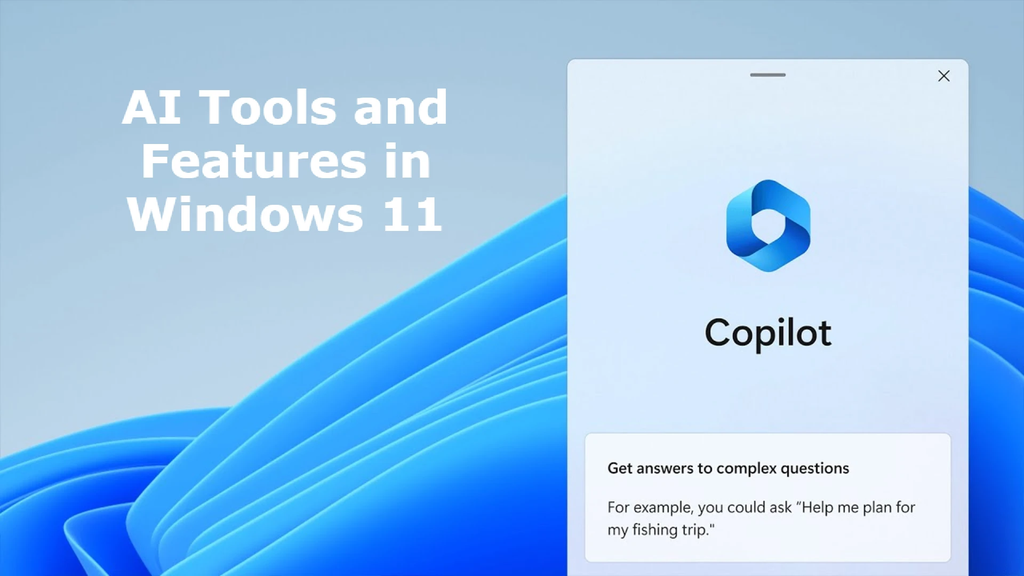
The strongest reason to pay attention to Windows AI is its potential to reduce repetitive work. Finding files, summarizing information, editing images, and navigating settings are everyday activities that can benefit from more intelligent assistance.
However, there are trade-offs.
Potential benefits
- Less time spent searching for files and settings.
- Faster first drafts, summaries, and lists.
- More accessible ways to interact with a PC.
- Better integration between apps and operating-system tasks.
- More opportunities for local AI processing on compatible hardware.
Limitations
- Some features require newer hardware.
- Availability can vary by language and region.
- Features may roll out gradually or remain in preview.
- AI-generated results can be inaccurate and still need review.
- Features involving personal activity require thoughtful privacy choices.
The best approach is to evaluate each feature based on the task it helps you complete, rather than assuming that every AI-labelled feature will automatically improve your workflow.
Frequently Asked Questions
1. What are the best Windows 11 AI tools in 2026?
Features worth exploring include AI-enhanced Windows Search, Click to Do, Recall, the Settings agent, and Copilot experiences. Availability depends on your PC, Windows version, language, and rollout status.
2. What is the Windows 11 2026 Update?
Windows 11 version 26H2 is Microsoft’s 2026 feature update. Eligible devices already running versions 24H2 or 25H2 can receive it through an enablement package, subject to update availability and compatibility.
3. Is Recall available on every Windows 11 PC?
No. Recall requires a compatible Copilot+ PC and specific security requirements. Users must opt in to saving snapshots.
4. Can Windows 11 AI tools summarize text?
Some supported experiences, including Click to Do, can summarize selected text. The available actions depend on device compatibility, language, account requirements, and feature availability.
5. Are Windows 11 AI features free?
There is no single answer for every AI experience. Availability and cost depend on the Windows feature, associated app, account, subscription, and service. Check the requirements for the specific feature you want to use.
6. How do I get the latest Windows 11 AI features?
Open Settings, select Windows Update, and choose Check for updates. Some features require compatible hardware or may be distributed gradually, so updating Windows alone may not enable everything.
7. Is Windows Recall safe to use?
Recall includes opt-in controls, local storage, encryption, and ways to pause or delete snapshots. Still, because it can capture activity on your PC, review its privacy settings and exclusions before enabling it.
8. Should I buy a Copilot+ PC for AI?
Only if the features you want require Copilot+ hardware and justify the cost for your needs. Check individual feature requirements and consider whether your current PC can already handle your AI tasks through supported apps.
Conclusion
Windows 11 AI tools are gradually changing how people search, create, manage settings, and work with information. Features such as Click to Do, Recall, enhanced Search, and Copilot show Microsoft’s direction toward a more helpful and context-aware PC experience.
But the important question is not simply how many AI features Windows has. It is whether those features are available on your device, solve a real problem, and give you enough control over your data.
Start by checking your Windows update status, exploring the features your PC supports, and reviewing the privacy settings before enabling tools that use your activity or files. As Microsoft’s rollout continues, this guide can be updated with confirmed availability changes and new features.