
Your PlayStation 5 is capable of much more than simply running games. PS5 guide But are you getting the best experience from it?
Whether you own the standard PS5, PS5 Slim or PS5 Pro, you may have faced some familiar pr
oblems: running out of storage, slow downloads, Wi-Fi disconnections, controller drift, overheating warnings, games looking blurry, or not knowing which settings to use for the best performance.
And with Grand Theft Auto VI now arriving, many PlayStation owners are also asking bigger questions:
- Is the PS5 still powerful enough for demanding new games?
- Is the PS5 Pro worth buying?
- Can you really improve FPS through console settings?
- Which SSD should you buy for more storage?
- What should you do if your PS5 keeps disconnecting from the internet?
- How can you get the best picture quality from your TV?
- What should you check before buying a new PlayStation?
This guide answers those questions in simple language. Instead of focusing only on the latest headlines, we’ll cover the settings, upgrades, troubleshooting steps and practical tips that every PS5 owner should understand.
At the end, we’ll also look at the latest PlayStation and GTA 6 developments, including the recent performance comparisons and PlayStation Network outage reports.
1. PS5 vs PS5 Slim vs PS5 Pro: Which PlayStation Should You Buy?
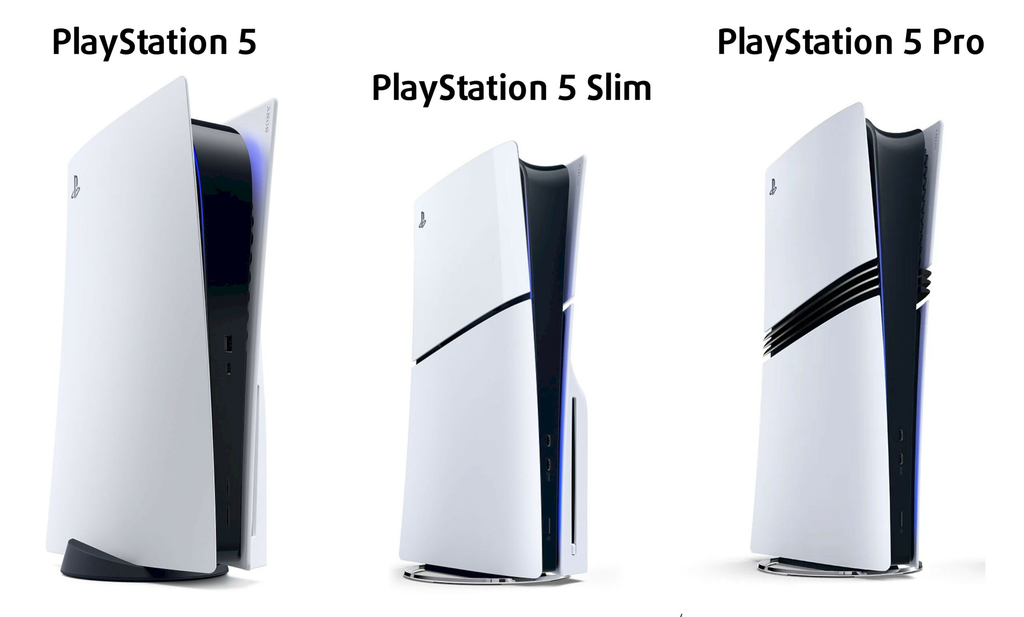
One of the biggest questions for anyone planning to buy a PlayStation is whether to choose the standard PS5, PS5 Slim or PS5 Pro.
All three are part of the same PlayStation 5 generation, but they are designed for slightly different needs.
Standard PS5
The standard PS5 is still a capable gaming console. It offers fast SSD loading, ray-tracing support in compatible games, 4K output and features such as DualSense haptic feedback.
It is a sensible choice if you want to enjoy modern PlayStation games without spending extra money on the most powerful version.
PS5 Slim
The PS5 Slim offers a smaller physical design while retaining the core PS5 gaming experience.
It is a good option if you have limited space near your TV or prefer a more compact console. It is not a major performance upgrade over the original PS5.
PS5 Pro
The PS5 Pro is designed for players who want improved graphics and performance in games that support its enhanced features.
Depending on the game, it can offer improved image reconstruction, higher-quality visual effects and better performance in certain graphics modes.
However, remember that a PS5 Pro does not automatically make every game run at 60 FPS. Developers decide how their games use the hardware.
PS5 comparison
| Feature | PS5 | PS5 Slim | PS5 Pro |
|---|---|---|---|
| Generation | PS5 | PS5 | PS5 |
| Physical design | Original | Smaller | Enhanced design |
| Game compatibility | PS5 games | PS5 games | PS5 games |
| Storage expansion | Compatible M.2 SSD | Compatible M.2 SSD | Compatible M.2 SSD |
| Enhanced graphics | Standard PS5 features | Standard PS5 features | Enhanced graphics in supported games |
| Best suited for | Most players | Compact setup | Players seeking enhanced visuals |
Our recommendation: If you already own a standard PS5 and are happy with its performance, you don’t necessarily need to upgrade. Consider the PS5 Pro if you have a suitable 4K TV and regularly play graphically demanding games.
Screenshot suggestion: Add a side-by-side comparison image of the PS5, PS5 Slim and PS5 Pro.
2. How to Get Better Graphics and Performance on PS5
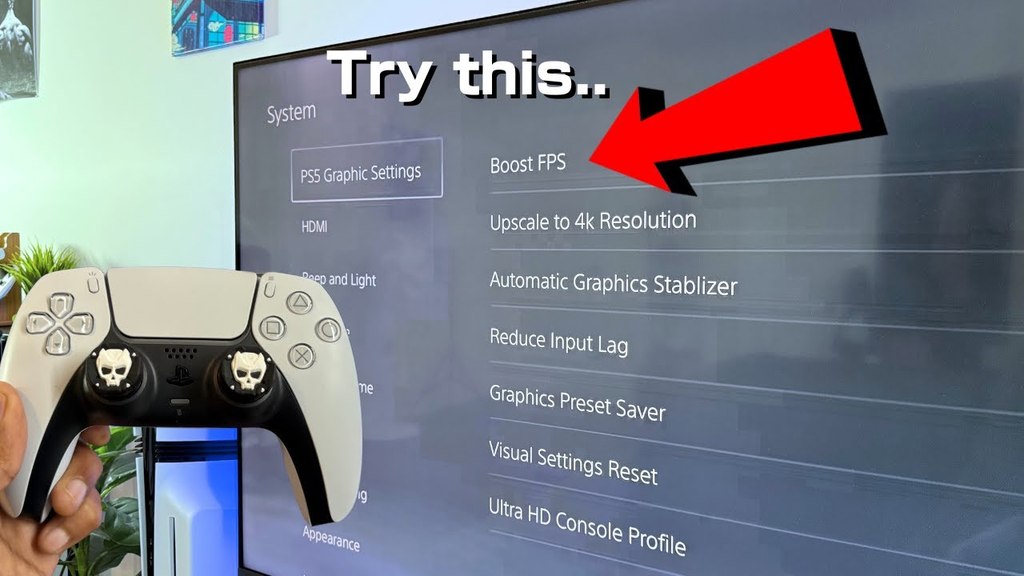
Buying a powerful console is only one part of getting a good gaming experience. Your TV settings and in-game graphics options also matter.
Many players connect their PS5 to a 4K TV and assume that everything will automatically run at the highest possible quality.
That is not always the case.
Choose the right game preset
The PS5 includes a setting that can help you choose between performance-focused and resolution-focused game presets.
Go to:
Settings → Saved Data and Game/App Settings → Game Presets
You can choose between:
- Performance Mode: Prioritises smoother gameplay and higher frame rates where supported.
- Resolution Mode: Prioritises visual quality and resolution where supported.
- Game Default: Allows the game to use its own recommended settings.
The exact options available depend on the game.
If you play competitive games, such as shooters or racing titles, you may prefer smoother gameplay. For story-driven games, you might prefer higher visual quality.
Enable 120Hz output if your TV supports it
A 120Hz display can provide a smoother experience in games that support 120 FPS or compatible high-refresh-rate modes.
To check the setting:
- Open Settings on your PS5.
- Select Screen and Video.
- Open Video Output.
- Find the 120 Hz Output option.
- Set it to Automatic.
You also need a compatible TV or monitor, a suitable HDMI connection and a game that supports the feature.
Important: Enabling 120Hz does not force every game to run at 120 FPS. The game must support a high-frame-rate mode.
What is VRR, and should you enable it?
VRR stands for Variable Refresh Rate.
It helps a compatible display adjust its refresh rate to match the frame output of the console. This can reduce screen tearing and make supported games feel smoother when frame rates fluctuate.
To check it:
Settings → Screen and Video → Video Output → VRR
Choose Automatic if your display supports VRR.
If a game does not officially support VRR, you can test the option to apply it to unsupported games. However, results may vary.
Check your HDR settings
HDR can improve brightness, contrast and colour in supported games and displays.
Go to:
Settings → Screen and Video → Video Output → Adjust HDR
Follow the on-screen calibration instructions.
Don’t simply increase every brightness setting to maximum. Incorrect HDR calibration can make bright areas lose detail or dark scenes difficult to see.
Practical tip: If your game looks too dark, check both the PS5 HDR calibration and the brightness settings inside the game before changing your TV’s entire picture profile.
Screenshot suggestions:
- PS5 Game Presets screen showing Performance and Resolution options.
- PS5 120Hz Output setting.
- PS5 VRR setting.
- PS5 HDR calibration screen.
3. PS5 Storage Full? Here’s How to Upgrade It Properly
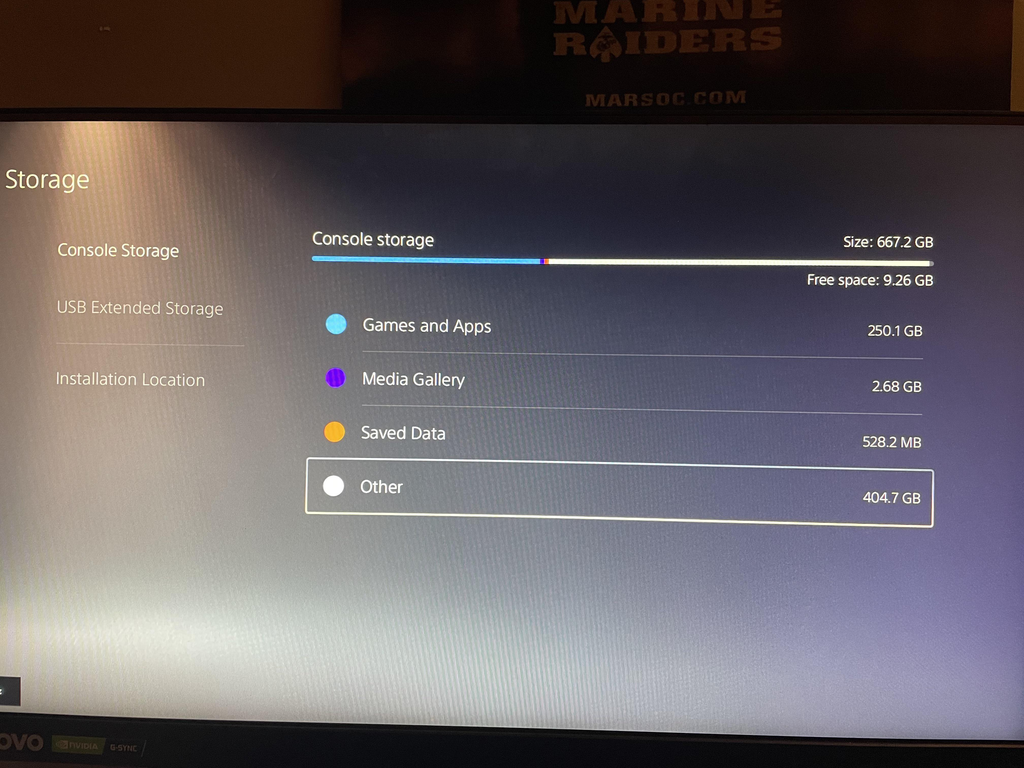
Running out of storage is one of the most common problems for PlayStation owners.
Modern games can occupy a significant amount of space, especially when you install several large titles together.
You might delete a game to install another, only to download the previous one again a few weeks later.
The good news is that you have several storage options.
Option 1: Delete games you no longer play
If you don’t want to buy additional storage, start by checking which games are taking up the most space.
Go to:
Settings → Storage → Console Storage → Games and Apps
Select the games you no longer need and delete them.
Deleting a purchased game does not normally remove your ownership. You can download it again from your Game Library using the account that owns it.
Before deleting anything, check whether you need to back up any important game data.
Option 2: Add an internal M.2 SSD
An internal M.2 NVMe SSD is one of the most useful upgrades for PS5 owners.
A compatible M.2 SSD can increase your available storage and allow you to install, download and play PS5 games directly from the additional drive.
Before buying one, check the official compatibility requirements.
Look for:
- PCIe Gen4 x4 NVMe support.
- A compatible M.2 form factor.
- Recommended sequential read speed of at least 5,500 MB/s.
- A suitable heatsink or heat-dissipation solution.
- Dimensions that fit the PS5 expansion slot.
Sony’s supported specifications and installation instructions should always be checked before purchasing.
Official guide: How to add an M.2 SSD to a PS5
Option 3: Use an external USB drive
An external USB drive is another option if you want to keep more games without installing an internal SSD.
However, there is an important difference:
- PS4 games can be played directly from compatible USB extended storage.
- PS5 games can be stored on USB extended storage, but must be moved back to console storage or an internal M.2 SSD before playing.
This is why an internal M.2 SSD is usually the more convenient choice if you regularly switch between several PS5 games.
Official guide: USB Extended Storage on PS5
Which storage option should you choose?
| Storage type | Store PS5 games | Play PS5 games directly | Best use |
|---|---|---|---|
| Built-in SSD | Yes | Yes | Everyday gaming |
| Internal M.2 SSD | Yes | Yes | Expanding playable storage |
| External USB drive | Yes | No | Archiving PS5 games |
| External USB drive for PS4 games | Yes | Yes | Playing PS4 games |
Our recommendation: If your budget allows it, a compatible internal M.2 SSD is the most practical upgrade for someone with a large PS5 game collection.
Screenshot suggestions:
- PS5 Storage screen showing available space.
- An internal M.2 SSD installed in the PS5 expansion slot.
- The Move Games and Apps menu.
4. PS5 Internet Problems: How to Fix Slow Downloads and Connection Drops
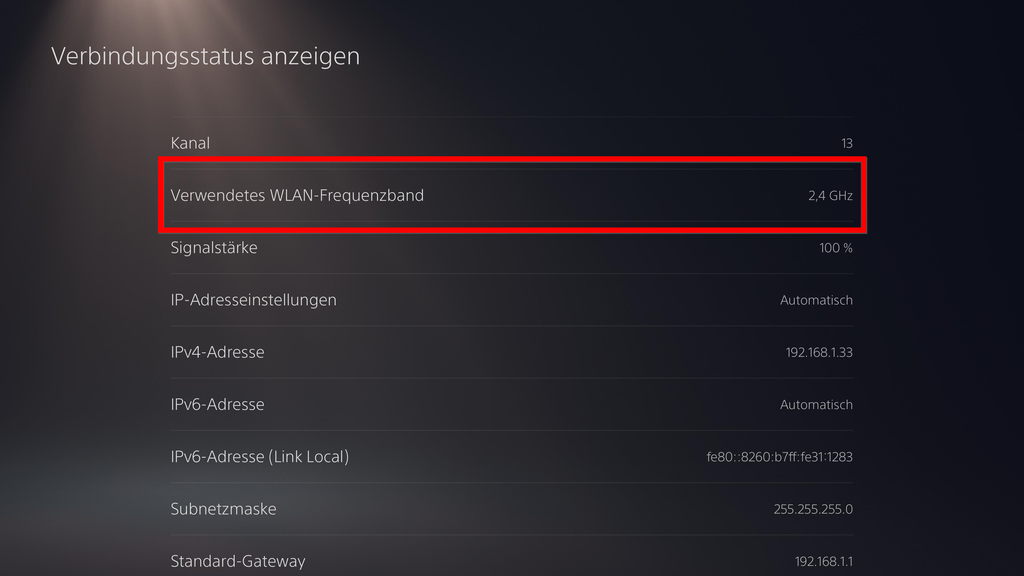
A slow internet connection can ruin an otherwise great gaming experience.
You might experience slow downloads, high ping, disconnections during multiplayer matches or problems signing in to PlayStation Network.
Before blaming your internet provider, try these checks.
Step 1: Test your internet connection
Go to:
Settings → Network → Connection Status → Test Internet Connection
This helps you check whether your PS5 can connect to the internet and PlayStation Network.
Remember that a successful connection test does not guarantee low latency in every online game.
Step 2: Use a wired Ethernet connection
If possible, connect your PS5 directly to your router using an Ethernet cable.
A wired connection can provide more consistent network performance than Wi-Fi, especially when your console is far from the router or there are several connected devices.
Step 3: Check your Wi-Fi connection
If Ethernet is not practical:
- Keep your router in an open and central location.
- Avoid placing it behind thick walls or inside closed cabinets.
- Try the 5GHz Wi-Fi band if your router and console support it.
- Reduce unnecessary network activity on other devices.
- Restart your router if the connection becomes unstable.
Step 4: Check PlayStation Network status
Sometimes your home internet works perfectly, but PlayStation Network is experiencing problems.
Check the official status page:
PlayStation Network Service Status
If services are down, changing your router settings or resetting your console is unlikely to solve the problem.
Step 5: Pause downloads while gaming
Large downloads can use a significant portion of your available internet bandwidth.
If you experience lag while playing online, pause other downloads and check whether the connection improves.
Important: A higher download speed does not automatically mean lower ping. Online gaming also depends on latency, routing, Wi-Fi stability and the game server’s location.
Screenshot suggestions:
- PS5 Test Internet Connection screen.
- Ethernet cable connected to the console.
- PlayStation Network status page showing service availability.
5. PS5 Overheating: Why It Happens and How to Prevent It
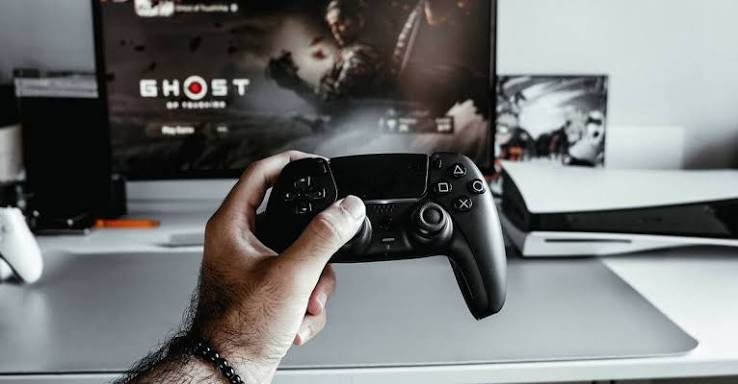
If your PS5 becomes unusually hot, displays an overheating warning or shuts down during gameplay, don’t ignore it.
Gaming consoles produce heat, especially when running demanding games for extended periods. However, poor ventilation or blocked air vents can make the situation worse.
Common reasons for PS5 overheating
- The console is placed inside a closed cabinet.
- Dust has collected around the ventilation openings.
- The console is too close to a wall.
- The room temperature is very high.
- The console’s airflow is restricted.
How to improve PS5 airflow
- Keep the console in an open, well-ventilated space.
- Avoid placing it directly against a wall.
- Keep the ventilation openings clear.
- Clean external dust carefully using appropriate methods.
- Avoid using the console on soft surfaces that block airflow.
If you receive an overheating warning, turn the console off and allow it to cool before using it again.
Do not open the power supply or attempt complicated internal repairs unless you are qualified to do so.
If the console repeatedly overheats despite proper ventilation, contact PlayStation Support or a qualified repair professional.
One mistake to avoid: Don’t assume that a cooling stand will solve every overheating problem. Proper airflow and a clean console are more important.
Screenshot suggestion: Add a labelled image showing the recommended open space around a PS5 console and its ventilation areas.
6. PS5 Controller Problems: Drift, Charging and Connection Fixes
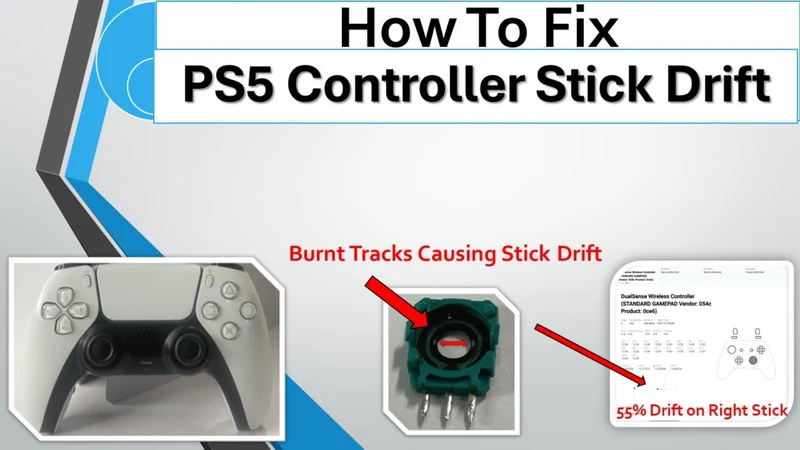
The DualSense controller is one of the most important parts of the PlayStation 5 experience.
Its adaptive triggers and haptic feedback can make supported games feel more immersive.
However, controller problems can affect gameplay.
What is stick drift?
Stick drift happens when your character or camera moves even though you are not touching the analogue sticks.
For example, your character might slowly walk forward or the camera might move on its own.
Possible causes include:
- Wear inside the analogue stick mechanism.
- Dust or debris.
- Physical damage.
- Hardware-related faults.
Try these basic troubleshooting steps
- Restart your PS5.
- Disconnect and reconnect the controller.
- Check for available controller software updates.
- Reset the controller using the small reset button on its rear.
- Test the controller in another game.
To check for controller updates:
Settings → Accessories → Controller (General) → DualSense Wireless Controller Device Software
If the drift continues, the controller may need professional repair or replacement.
Controller not charging?
Try the following:
- Use another compatible USB cable.
- Try a different USB port on the console.
- Check whether the controller charges when the PS5 is in Rest Mode.
- Inspect the charging port for visible damage.
Avoid forcing cables into the controller’s charging port.
Helpful tip: If your controller works correctly in menus but drifts in one particular game, check that game’s dead-zone and sensitivity settings before assuming the controller is faulty.
Screenshot suggestion: Show the DualSense controller with labels for the analogue sticks, USB-C charging port and rear reset button.
7. PS5 Not Starting, Freezing or Showing a Black Screen? Try Safe Mode
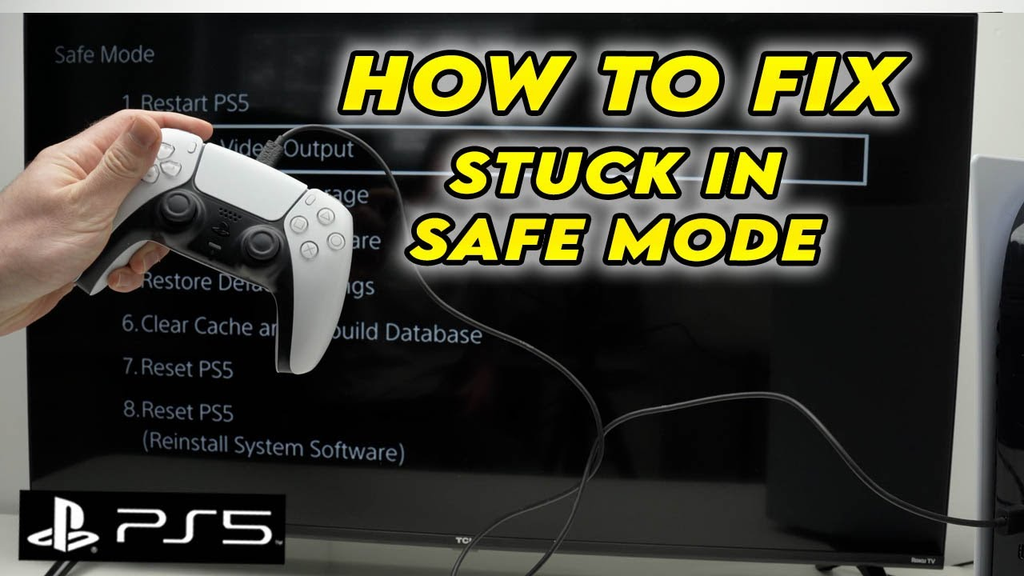
A PS5 that freezes, displays a blank screen or fails to start normally can be frustrating.
Before performing a factory reset, understand the available Safe Mode options.
How to enter PS5 Safe Mode
- Turn off the PS5 completely.
- Press and hold the power button again.
- Keep holding it until you hear the second beep, approximately seven seconds after the first.
- Connect your controller using a USB cable.
- Press the PS button.
You should now see the Safe Mode menu.
Useful Safe Mode options
Restart PS5
Use this if the console simply needs a normal restart.
Change Video Output
This can help when you experience certain display or resolution problems.
Repair Console Storage
This option can help if the console has storage-related problems or does not start correctly.
Update System Software
Use this if you need to update the console software.
Clear System Software Cache
This can help troubleshoot some system feature issues or performance drops.
Rebuild Database
This scans the console drive and creates a new database of content. It can help resolve certain system issues.
Should you factory reset your PS5?
A factory reset should be a last resort.
The Reset PS5 option deletes user data and restores the console to its original state.
Before using it, make sure you understand what will be deleted and back up important data wherever possible.
Official guide: How to use Safe Mode on PS5
Screenshot suggestion: Add an image of the PS5 Safe Mode menu with Repair Console Storage, Clear Cache and Rebuild Database highlighted.
8. How to Get the Best PS5 Experience on a 4K TV or Gaming Monitor
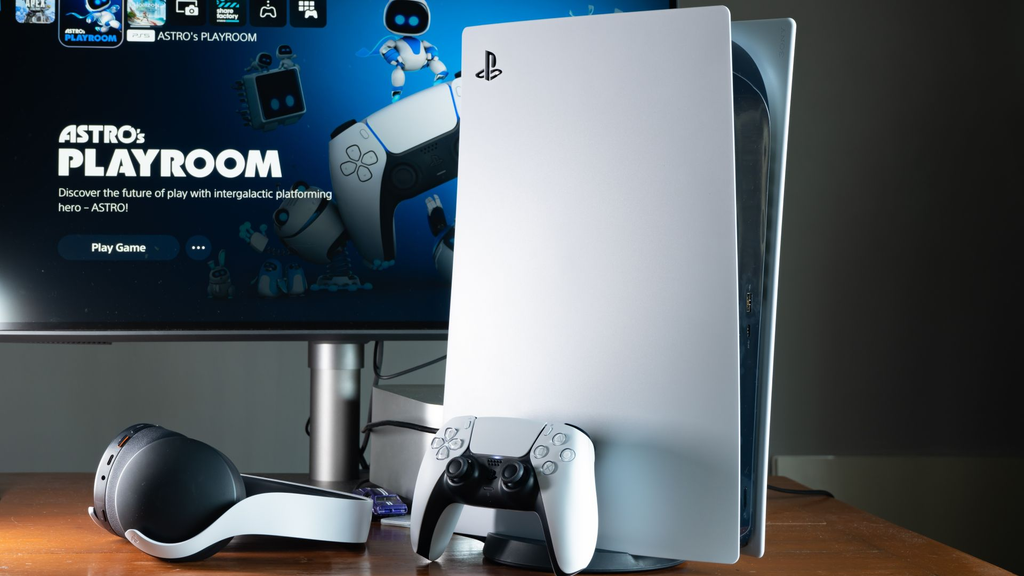
Your display can make a major difference to your gaming experience.
A good gaming monitor or TV can help you enjoy higher refresh rates, HDR and lower input latency.
But you don’t necessarily need the most expensive display to enjoy your PS5.
What should you look for?
4K resolution
A 4K display can provide a sharper image in games that support 4K output.
120Hz refresh rate
A 120Hz display can support smoother gameplay in compatible games.
HDMI 2.1
This connection standard is important for features such as 4K at 120Hz, depending on the display and its implementation.
VRR support
Variable Refresh Rate can help reduce screen tearing in compatible setups.
Low input lag
A display with low input lag can make controls feel more responsive, particularly in competitive games.
TV or gaming monitor: Which is better?
| Feature | 4K TV | Gaming monitor |
|---|---|---|
| Screen size | Usually larger | Usually smaller |
| Gaming distance | Sofa and living room | Desk setup |
| Input lag | Depends on model | Often low on gaming models |
| 120Hz support | Available on selected models | Available on selected models |
| Best for | Story games and entertainment | Competitive and desk gaming |
Our recommendation: If you mainly play story-driven games, a good 4K TV can be an excellent choice. If you play competitive shooters, a gaming monitor with low input lag and 120Hz support may suit you better.
9. PlayStation Plus: Is It Worth Paying For?
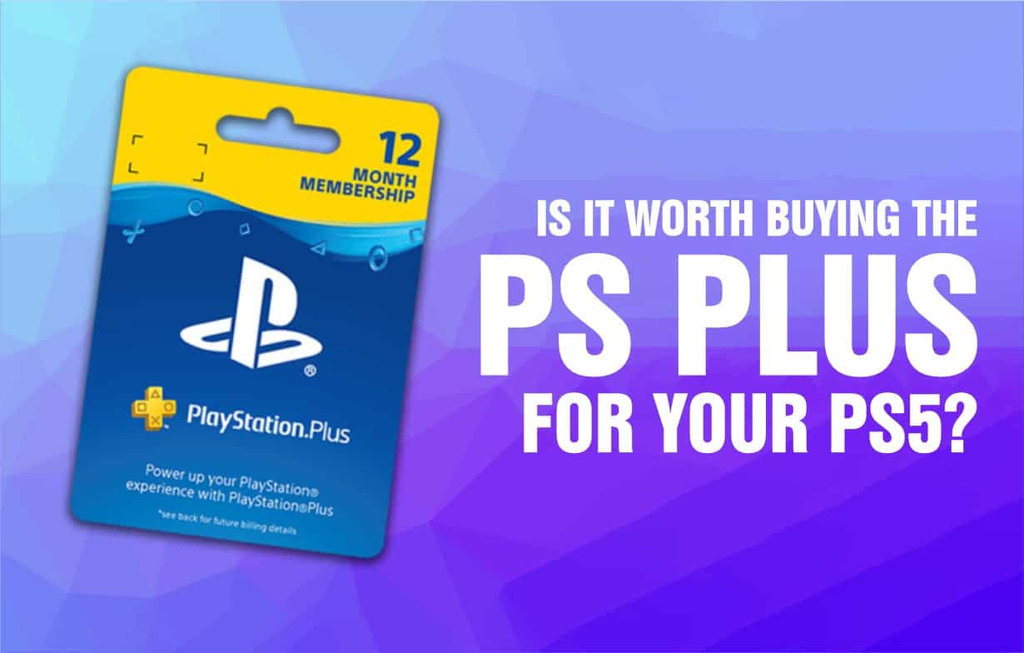
PlayStation Plus is an important service for many PS5 owners.
However, not everyone needs the same subscription.
The value depends on how you play games.
PlayStation Plus Essential
This is generally the entry-level option.
It provides benefits such as online multiplayer access for supported paid games and monthly game offerings.
PlayStation Plus Extra
Extra includes the Essential benefits and access to a larger catalogue of downloadable games.
It can be useful if you regularly try different games instead of buying every title individually.
PlayStation Plus Premium
Premium includes the lower-tier benefits along with additional features such as access to selected classic games and game streaming in supported regions.
Availability and features can vary by country.
Which plan should you choose?
- Choose Essential if you mainly need online multiplayer.
- Consider Extra if you want access to a larger game catalogue.
- Consider Premium if you will actually use its additional features.
Before subscribing: Check the current prices, available games and regional benefits on the official PlayStation website. Game catalogues change over time, so don’t subscribe based on a title that may leave the service soon.
Official website: PlayStation Plus
10. PS5 Tips and Features Many Players Don’t Use Enough
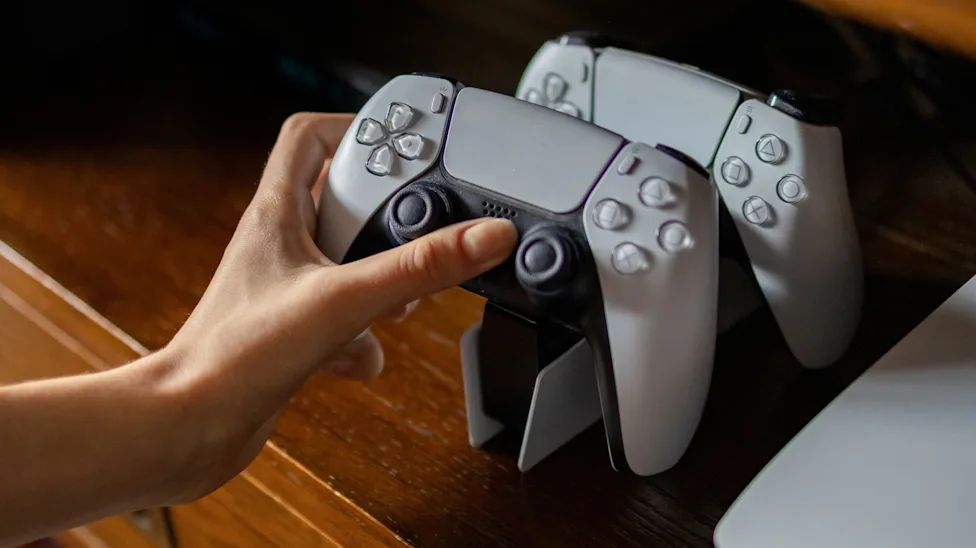
You don’t always need to buy additional accessories to improve your PlayStation experience.
Some useful features are already built into the console.
Use Rest Mode for downloads
Rest Mode can allow supported downloads and installations to continue while the console is in a low-power state.
You can check the available options under:
Settings → System → Power Saving → Features Available in Rest Mode
Organise your game library
If you have a large collection, use your Game Library to find installed games, purchased titles and games that are ready to download.
You can also move supported games between storage locations.
Use the PlayStation App
The official PlayStation App lets you interact with your PlayStation account from a smartphone.
Depending on the feature and region, you can:
- Browse the PlayStation Store.
- Manage downloads.
- Chat with friends.
- View your game library.
- Manage selected account features.
Capture and share gameplay
The Create button on the DualSense controller lets you capture screenshots and video clips.
You can also share supported captures through the PlayStation App.
This is useful if you create gaming content for YouTube, Instagram or other social media platforms.
Protect your account
Use a strong password and enable an available additional sign-in security method.
Never share verification codes with someone claiming to be PlayStation Support.
Be careful with websites offering unusually cheap PlayStation accounts, game codes or subscriptions.
11. Is PS5 Still Worth Buying for GTA 6 and Future Games?
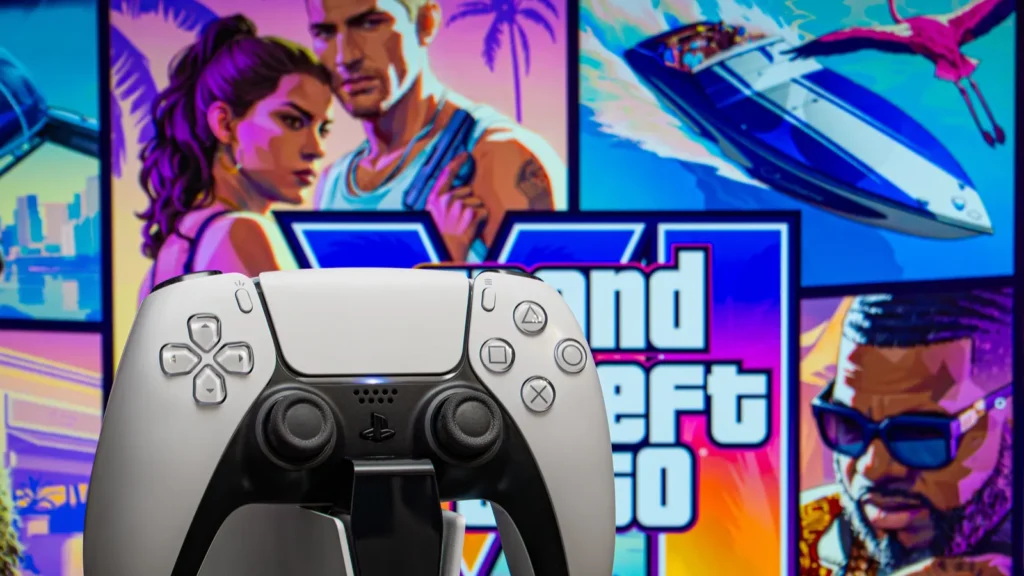
This is one of the most important questions for anyone considering a PlayStation purchase.
GTA 6 is an example of how demanding modern games are becoming.
A game can look impressive while also requiring developers to make difficult decisions about resolution, frame rate, lighting and visual effects.
The standard PS5 remains a capable gaming console, but the PS5 Pro is designed to provide a more enhanced experience in supported titles.
Before buying either console, think about the following:
- Do you already own a PS5?
- Do you have a 4K TV?
- Do you care more about graphics or smoother gameplay?
- Do you regularly play demanding AAA games?
- Is the price difference worth the improvement for your gaming habits?
Should you buy a PS5 Pro just for GTA 6?
Not automatically.
The PS5 Pro can offer visual and performance advantages, but it does not guarantee a 60 FPS experience.
If you already own a standard PS5, wait until you have compared real gameplay footage and performance analysis before spending money on an upgrade.
If you are buying your first console and have the budget, comparing the actual price difference between the PS5 and PS5 Pro makes more sense than choosing based only on marketing claims.
12. Latest PS5 and GTA 6 News: What Players Should Know
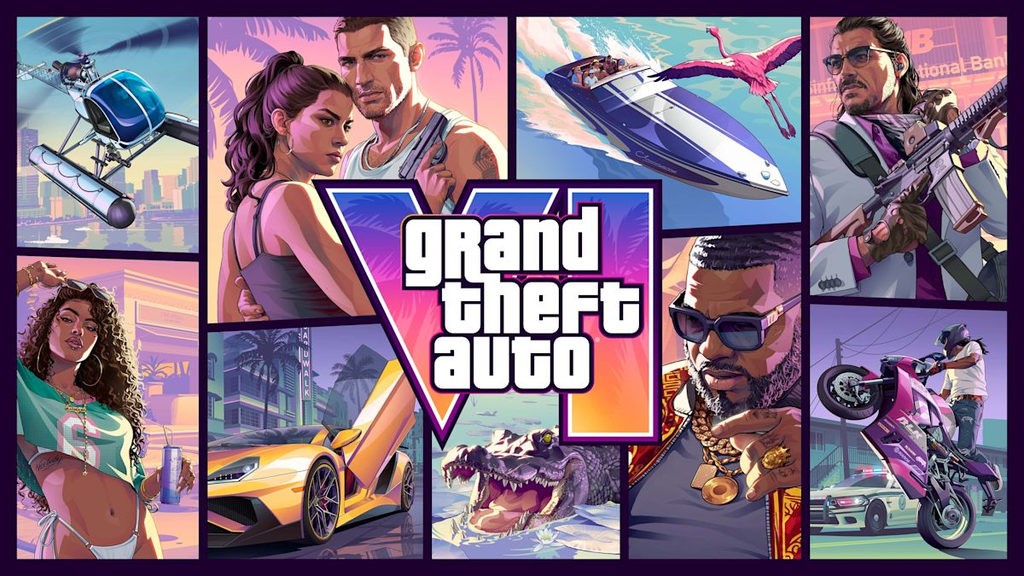
This final section covers the recent developments from November 2026. Unlike the rest of this guide, these stories are time-sensitive and may change as developers release updates.
GTA 6 Performance: PS5 vs PS5 Pro vs Xbox Series X and Series S
One of the biggest discussions around GTA 6 is its performance across different consoles.
Recent reporting on Rockstar’s technical explanations and Digital Foundry’s testing indicates that all console versions target 30 FPS.
The reported rendering and upscaling approaches are different:
| Console | Reported base resolution | Upscaling method | Frame-rate target |
|---|---|---|---|
| PS5 | 1440p | Rockstar’s TAA | 30 FPS |
| PS5 Pro | 1440p | Sony PSSR2 | 30 FPS |
| Xbox Series X | 1440p | Rockstar’s TAA | 30 FPS |
| Xbox Series S | 720p | AMD FSR 4 | 30 FPS |
The PS5 Pro is reported to deliver the most stable experience, with improved image reconstruction and additional ray-traced shadow features.
The standard PS5 and Xbox Series X also target 30 FPS, although demanding scenes can cause frame-rate drops.
The Xbox Series S uses a lower base resolution and a different upscaling method to balance image quality and performance.
What does this mean for PS5 owners?
If you own a standard PS5, the important point is that you can still play GTA 6 without buying a PS5 Pro. The Pro version offers additional visual advantages, but the game is not limited to that console.
Sources:
- Wccftech – PS5 Pro and GTA 6 Performance
- Tom’s Hardware – GTA 6 Resolution and Upscaling
- Digital Foundry – Console Comparison Coverage
Why GTA 6 Does Not Have a 60 FPS Mode on PS5
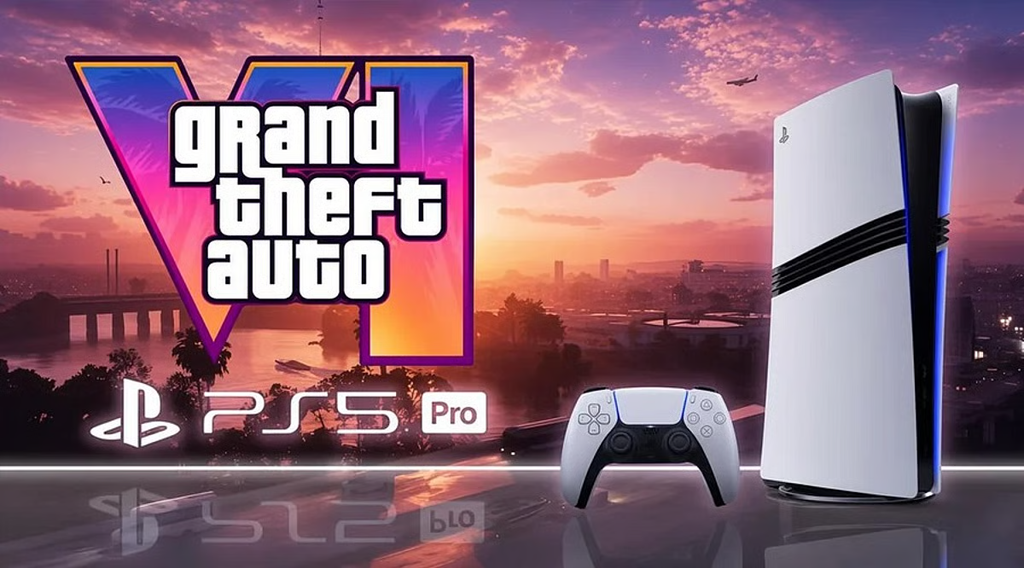
Many players expected GTA 6 to include a 60 FPS performance mode, particularly on the PS5 Pro.
However, the reported launch configuration targets 30 FPS across console versions.
A demanding open-world game has to manage several things simultaneously:
- Large environments and detailed city areas.
- Complex NPC behaviour.
- Vehicle physics and traffic simulation.
- Lighting and reflections.
- Animation and world interactions.
Developers have to balance these systems with visual quality and performance.
A 60 FPS mode may require significant compromises, and Rockstar’s reported launch decision prioritises its chosen balance.
This does not mean a future update is impossible. It simply means players should not buy a console expecting a 60 FPS mode that has not been confirmed.
PlayStation Network Outage Reported Before GTA 6 Launch
Another major development came on November 18, 2026, when PlayStation Network experienced a widespread outage shortly before the reported GTA 6 launch window.
Players reported problems signing in, accessing online services and connecting to multiplayer features.
The timing attracted additional attention because many players were preparing to access the highly anticipated game.
For PS5 owners, this is a useful reminder: not every connection issue is caused by your router or console.
Before troubleshooting your home network, check the official PlayStation Network status page.
Source: Axios – PlayStation Network Outage Before GTA 6 Launch
GTA 6 and Black Friday: Should You Buy a PS5 Now or Wait?
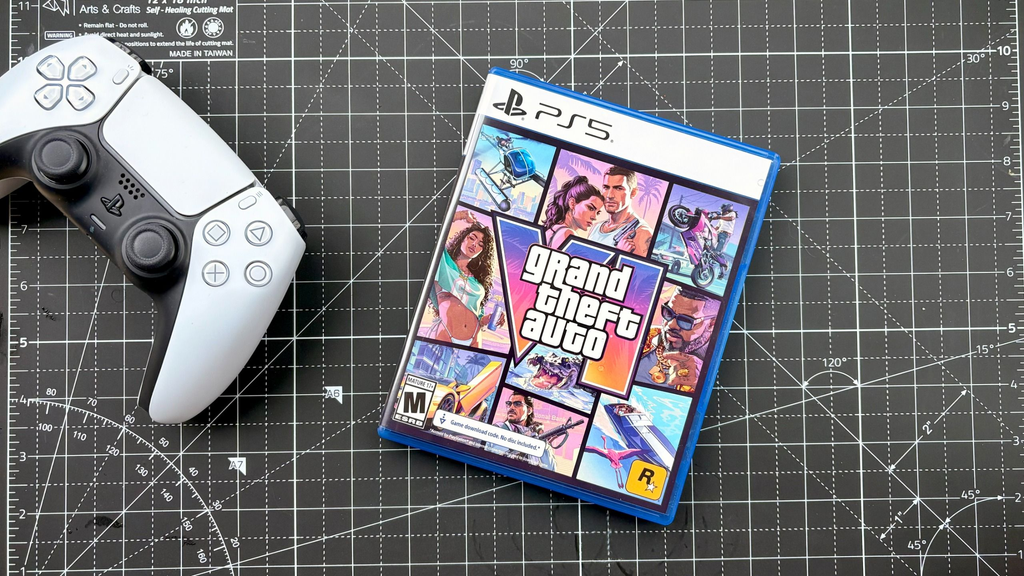
The Black Friday shopping period is also bringing attention to PlayStation hardware and game discounts.
If you are planning to buy a PS5, PS5 Pro, controller or additional storage, compare the final price rather than focusing only on the advertised discount.
Check:
- Whether the console is officially sold in your region.
- Whether the seller provides a valid warranty.
- Whether the package includes the accessories you need.
- Whether the discount is genuine compared with the usual selling price.
- Whether the console edition meets your needs.
A cheaper console is not necessarily a better deal if it comes without proper warranty support.
Source: Mashable – PS5 and PS5 Pro Black Friday Deals 2026
Final Verdict: How to Get More From Your PS5
The PlayStation 5 is more than a gaming machine. It is a complete entertainment system, and understanding its settings can make a noticeable difference to your everyday experience.
You don’t need to spend money on every new accessory or upgrade.
Start with the basics:
- Set the correct graphics and display options.
- Enable supported 120Hz and VRR features.
- Manage storage properly and consider an M.2 SSD if needed.
- Improve your internet connection for online gaming.
- Keep the console properly ventilated.
- Maintain your DualSense controller.
- Use Safe Mode carefully when troubleshooting.
- Protect your PlayStation account.
- Compare console performance before upgrading.
- Follow official announcements instead of relying on rumours.
Whether you play GTA 6, Call of Duty, Spider-Man, EA Sports FC or other PlayStation games, these tips can help you get more value from your console.
At Tech Thrilled, we’ll continue covering practical gaming guides, PlayStation updates, AI developments and technology news that actually help readers.
Have a PS5 problem that isn’t covered here? Share it in the comments. We’ll keep expanding this guide with useful fixes and answers.