
If you have been changing your WhatsApp wallpaper one conversation at a time, there is an easier way. WhatsApp now lets you set a default chat theme and wallpaper for all your chats from the app’s settings.
The option is particularly useful if you want the same background across your personal chats, group conversations, and other conversations without repeating the process for every chat. WhatsApp’s current Help Center instructions show that you can go to Settings > Appearance > Default chat theme > Wallpaper and choose a wallpaper for all chats. WhatsApp Help Center
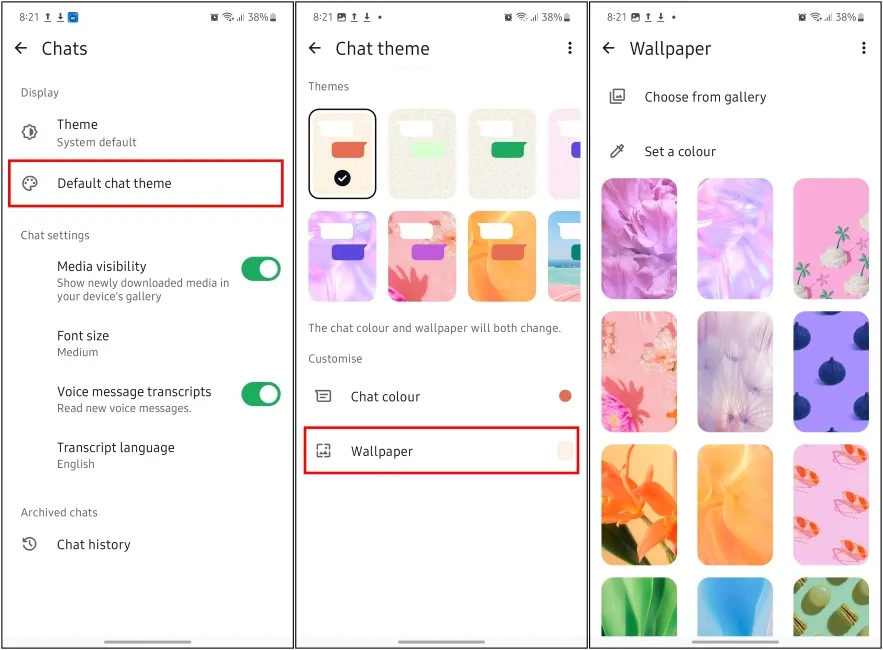
Here’s exactly how to do it.
Can You Change the Wallpaper for All WhatsApp Chats?
Yes. WhatsApp has a setting that lets you change the default wallpaper for all chats at once.
Instead of opening each conversation and selecting a wallpaper separately, you can change the Default chat theme from WhatsApp’s settings. The default theme can control the wallpaper and chat appearance across your conversations.
The exact wording and location can vary slightly depending on your WhatsApp version and device.
How to Change WhatsApp Wallpaper for All Chats
The process is straightforward, and you don’t need to modify every conversation individually.
On Android
Follow these steps:
- Open WhatsApp on your Android phone.
- Tap the three-dot menu in the top-right corner.
- Select Settings.
- Tap Appearance.
- Select Default chat theme.
- Tap Wallpaper.
- Choose the wallpaper you want to use.
- Confirm your selection.
- Tap Set wallpaper.
Your selected wallpaper will become the default background for your WhatsApp chats. These steps reflect WhatsApp’s current Android instructions. WhatsApp Help Center
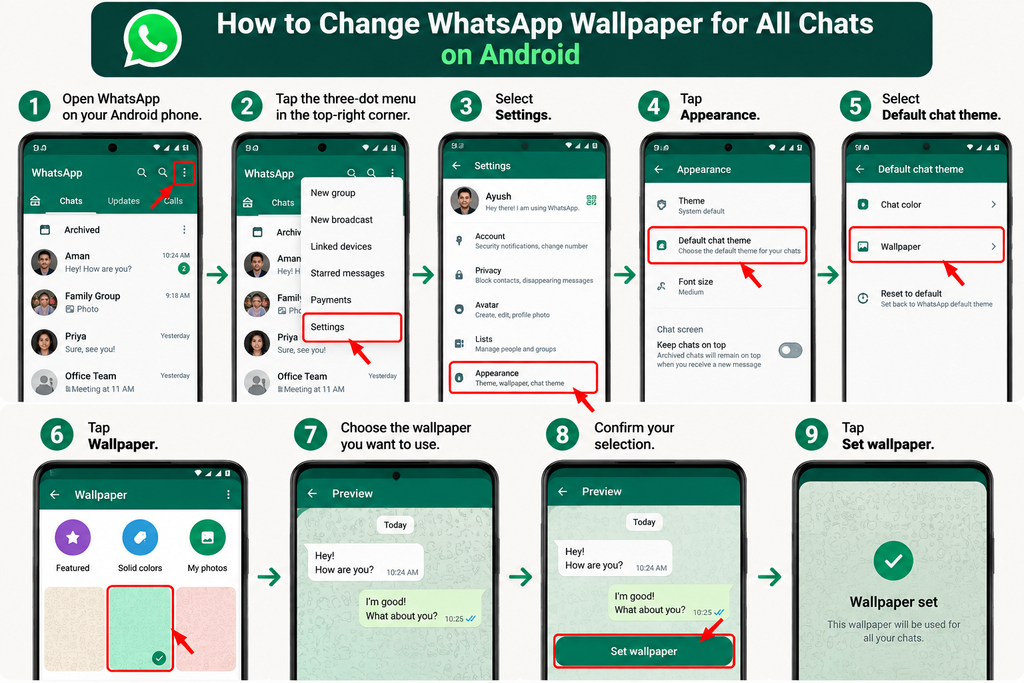
Depending on the version of WhatsApp you’re using, you may also see options to select an image from your photos, choose a solid color, or create a wallpaper with AI where the feature is available. WhatsApp Help Center
On iPhone
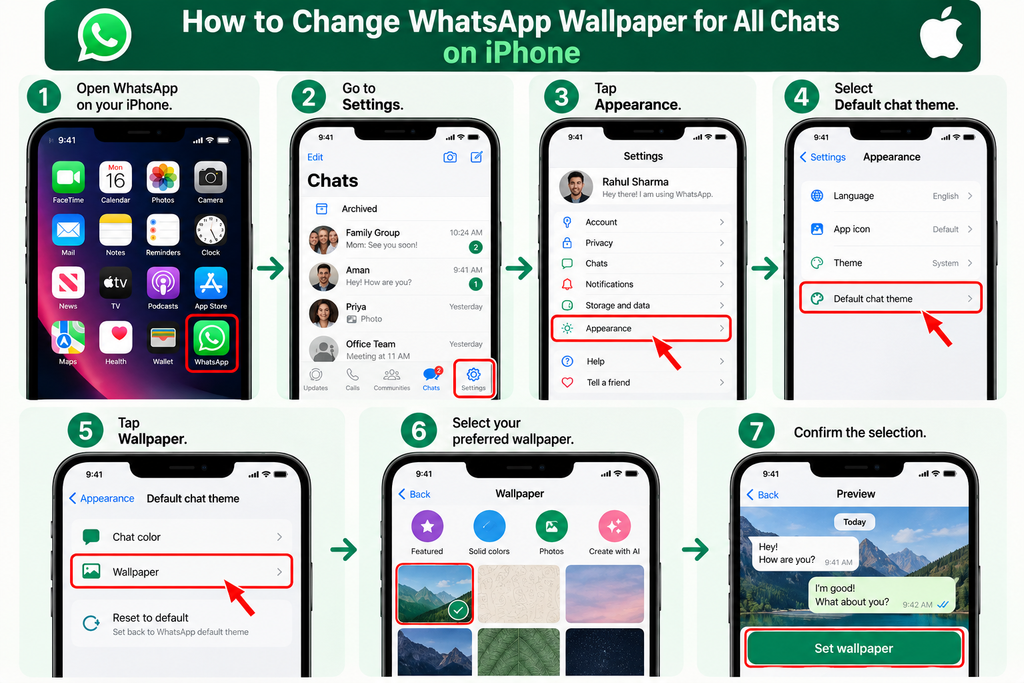
The process is slightly different from Android:
- Open WhatsApp.
- Go to Settings.
- Tap Appearance.
- Select Default chat theme.
- Tap Wallpaper.
- Select your preferred wallpaper.
- Confirm the selection.
WhatsApp’s current iPhone instructions also provide options such as choosing from Photos, selecting a solid color, or creating an AI wallpaper where supported.
Quick Tip
If you don’t see Appearance or Default chat theme, make sure WhatsApp is updated to the latest version available for your device. Menu names can also differ slightly between versions.
How to Use Your Own Photo as a WhatsApp Wallpaper
Want to use a photo of your pet, a favorite place, a family picture, or another image as your WhatsApp background?
WhatsApp allows you to select a wallpaper from your phone’s photos through the wallpaper settings. On supported versions, simply choose the option to select an image from Photos when picking your wallpaper.
For the cleanest result, choose an image that isn’t too busy. A simple background makes WhatsApp messages easier to read.
How to Change the Wallpaper for Only One Chat
You don’t have to use the same wallpaper everywhere.
If you want a different background for a particular conversation:
- Open the WhatsApp chat.
- Tap the chat name at the top.
- Select Chat theme.
- Tap Wallpaper.
- Choose your preferred wallpaper.
- Confirm the change.
WhatsApp supports separate customization for individual chats, so you can keep a default wallpaper while giving specific conversations their own look. WhatsApp Help Center
For example, you could use a simple wallpaper for most conversations and a different one for a family or friends’ group.
WhatsApp Wallpaper vs. Chat Theme
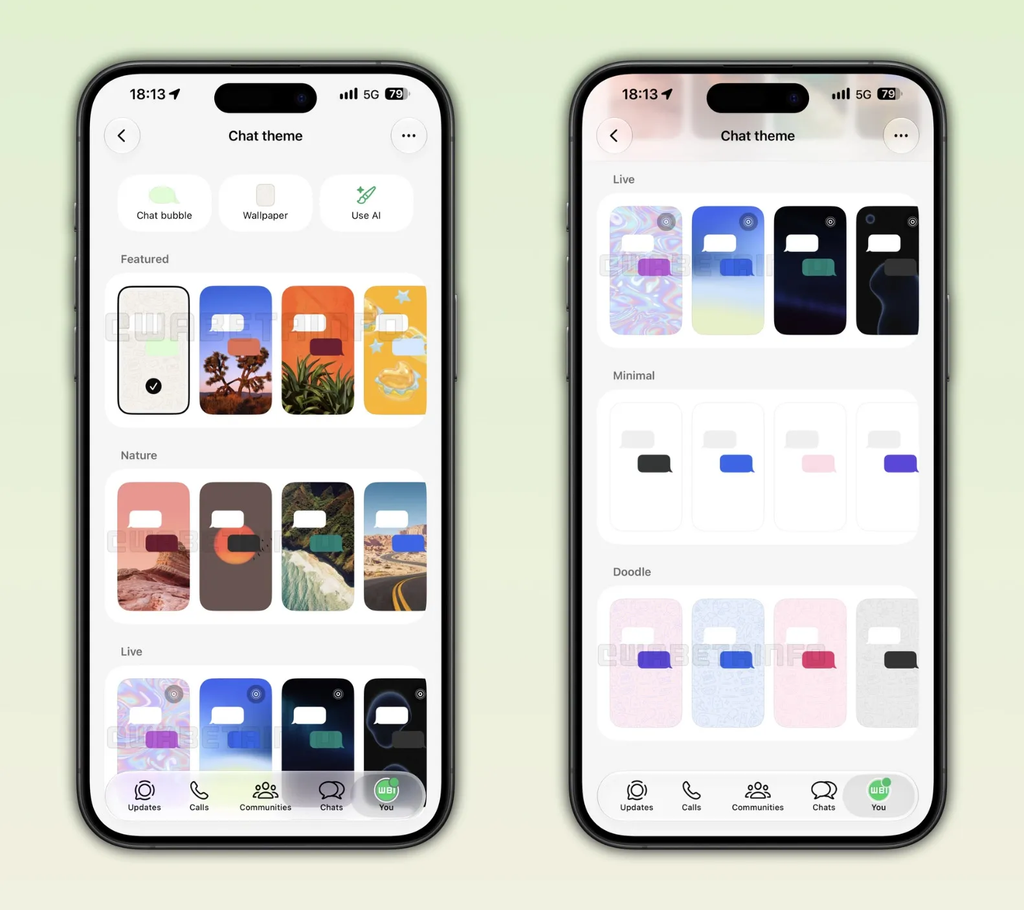
These two options can be easy to confuse.
A wallpaper changes the background behind your messages.
A chat theme can change multiple visual elements together, including the chat wallpaper and chat colors. WhatsApp’s current settings allow users to apply a theme to all chats or customize a specific conversation.
If you only want to change the background, choose the Wallpaper option instead of changing the entire theme.
Can You Create a WhatsApp Wallpaper With AI?
On supported versions and in supported countries, WhatsApp also offers an option to create wallpapers with AI.
WhatsApp says AI-generated images can be used as chat themes or wallpapers. Availability can vary by country and account, so you may not see the option even if another user does.
This can be useful if you want something more personalized than WhatsApp’s standard wallpaper collection.
Why Isn’t My WhatsApp Wallpaper Changing?
If your new wallpaper doesn’t appear everywhere, check these possibilities.
1. You’re changing an individual chat
A wallpaper selected from inside a specific conversation applies to that chat rather than changing the default for all conversations.
For a global change, use Default chat theme from WhatsApp’s settings.
2. Your WhatsApp version is outdated
Older versions may have a different interface or may not show the latest customization options.
Check your phone’s app store for an available WhatsApp update.
3. Your menus look different
WhatsApp regularly updates its interface, so the location or wording of settings can change.
Look for options related to Appearance, Default chat theme, Wallpaper, or Chat theme.
4. An individual chat has its own customization
A specific conversation can have its own chat theme or wallpaper. WhatsApp supports individual chat customization separately from the default appearance.
Tips for Choosing a Good WhatsApp Wallpaper
Changing your wallpaper is fun, but the wrong image can make messages difficult to read.
Here are a few simple tips:
- Choose a low-detail image: Busy photos can make text harder to see.
- Avoid extreme brightness: Very bright backgrounds may reduce readability.
- Try darker wallpapers: They can work particularly well with darker chat appearances.
- Use personal photos carefully: A portrait or landscape can look great if there’s enough empty space behind the messages.
- Try solid colors: A simple color can provide a cleaner, less distracting interface.
- Check message readability: After selecting a wallpaper, open a few chats and make sure the text and message bubbles remain easy to distinguish.
Frequently Asked Questions
Can I change the WhatsApp wallpaper for all chats at once?
Yes. WhatsApp provides a Default chat theme setting that lets you select a wallpaper for all chats instead of changing each conversation individually.
Where is the WhatsApp default wallpaper setting?
On current versions, go to WhatsApp Settings > Appearance > Default chat theme > Wallpaper. The exact menu wording may vary slightly depending on your device and app version.
Can I use my own picture as the wallpaper?
Yes. WhatsApp’s wallpaper settings can allow you to choose an image from your phone’s Photos, depending on the version and platform you’re using.
Can I have different wallpapers for different WhatsApp chats?
Yes. WhatsApp lets you customize individual chats separately. Open the conversation, go to its Chat theme, and select a wallpaper.
Does changing the default wallpaper delete my chats?
No. Changing the wallpaper is a visual customization and does not delete your conversations.
Can I change the WhatsApp chat bubble color too?
Yes. WhatsApp’s current customization options include chat bubble colors as well as wallpapers. You can change the default bubble color from Default chat theme.
Can I create a WhatsApp wallpaper with AI?
On supported accounts and in supported countries, WhatsApp provides an AI wallpaper creation option. Availability isn’t universal.
Why don’t I have the same wallpaper options as someone else?
WhatsApp features can vary depending on your app version, operating system, account, and regional availability. Some AI-related customization features are specifically limited by availability.
Final Thoughts
You no longer need to change your WhatsApp wallpaper one conversation at a time. With the Default chat theme setting, you can choose a wallpaper and apply it across your chats in just a few steps.
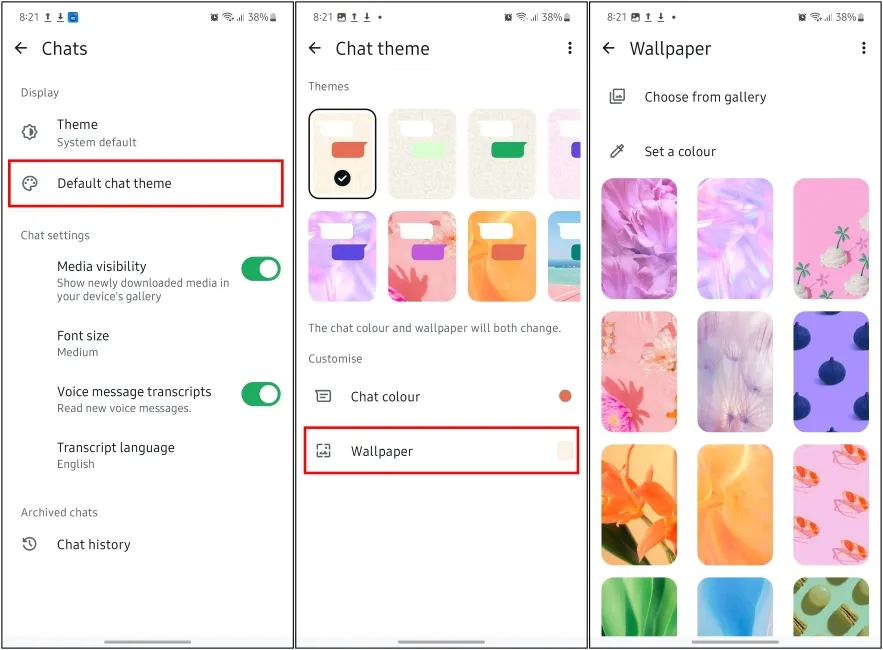
On current versions, the basic path is:
WhatsApp → Settings → Appearance → Default chat theme → Wallpaper
If you want more control, you can also customize individual chats, change chat bubble colors, use your own photos, or—where available—create an AI-generated wallpaper. WhatsApp Help Center
The main thing to remember is that default chat customization and individual chat customization are separate. If one conversation looks different after you’ve changed your default wallpaper, that chat may have its own custom theme or wallpaper.